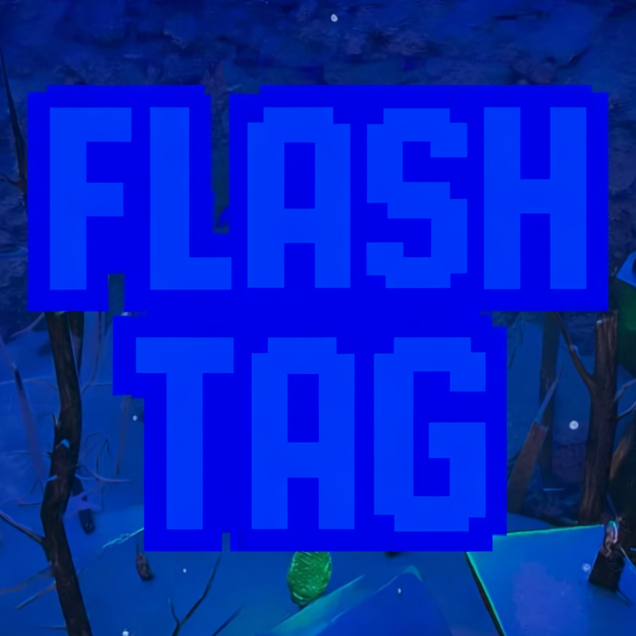
Flash Tag V2
A downloadable game
Welcome to Flash Tag, the high-octane VR experience where speed is your best weapon. Master the art of arm-based locomotion as you fling, climb, and wall-run your way to victory. Whether you are running from the infected or hunting down the last survivor, you need to think fast and move faster.
Install instructions
Here is a step-by-step tutorial on how to install VR APK files (like for your game Flash Tag) using either CX File Explorer or Mobile VR Station.
⚠️ Important Prerequisites
Before you start, ensure your VR headset is in Developer Mode. You usually need this to install apps from "Unknown Sources."
- Go to the Meta Horizon mobile app on your phone.
- Go to Menu > Devices > Headset Settings > Developer Mode.
- Toggle it ON.
Method 1: Using CX File Explorer (Recommended)
This is generally the cleanest and most reliable method if you already have CX File Explorer installed.
1. Download the Game APK
- Put on your headset.
- Open the Meta Quest Browser.
- Navigate to where your game file is hosted (Google Drive, Itch.io, Discord, etc.) and download the
.apkfile.
2. Locate the File
- Open CX File Explorer from your "Unknown Sources" list.
- Click on Downloads.
- You should see your game file (e.g.,
FlashTag.apk).
3. Install the Game
- Click on the
.apkfile. - A window will pop up asking if you want to install this application. Click Install.
- Note: If this is your first time, you may get a prompt asking to allow CX File Explorer to install unknown apps. Toggle that permission ON, then go back and click Install again.
- Once finished, click Done.
Method 2: Using Mobile VR Station
This method is great because Mobile VR Station is available directly on the official Store (via App Lab), so you don't need a PC to get it.
1. Download the Game APK
- Just like above, open your headset browser and download the
.apkfile for the game.
2. Open Mobile VR Station
- Launch Mobile VR Station from your library.
3. Navigate to the Installer
- Note: The interface can be a bit overwhelming; follow these steps exactly.
- Go to Local Files.
- Click Downloads.
- Find your game file (e.g.,
FlashTag.apk). - Click the View/Edit Toggle icon (sometimes needed to see the install option) OR simply click the file name.
- Select Install Scope (or "Install via Scoped Storage").
4. Complete the Install
- This might crash the Mobile VR Station app momentarily or open a dark system menu—this is normal.
- You should see the Android install prompt ("Do you want to install this app?").
- Click Install.
- Once done, click Done.
🏁 How to Play Your New Game
Once installed, the game will not appear in your main app grid. You must look in a specific folder:
- Open your App Library.
- Click the Search Bar or the Filter Dropdown (top right, usually says "All" or "Installed").
- Scroll down to the bottom and select Unknown Sources.
- You will see Flash Tag (or the package name like
com.flashaxiom.flashtag) listed there. - Click it to play!
Download
Leave a comment
Log in with itch.io to leave a comment.